11.26" 4K 2160P Dash Cam Carplay Android Auto Car DVR Dual Lens Wifi GPS BT FM Video Drive Recorder Stream Mirror Dashcam Camera
OI74-6M Rear-GPS / NONE
$214.99
Skip to product information


11.26" 4K 2160P Dash Cam Carplay Android Auto Car DVR Dual Lens Wifi GPS BT FM Video Drive Recorder Stream Mirror Dashcam Camera
$214.99
Supported Languages:
English, Chinese, Korean, Japanese, Russian, Arabic, Spanish, Portuguese, Polish, Turkish, French, German, Italian, Hebrew, Czech, Dutch.
About Formatting The Memory Card:
When installing a memory card for the first time, be sure to format the memory card on the DVR. After formatting, the DVR can correctly match the memory card.
Formatting Steps: After installing the memory card, please enter the DVR menu, find the format option, and click to format the memory card.(Important: Formatting the memory card on the computer is an incorrect operation. Please be sure to format the memory card on the DVR's menu option.)
About Carplay/Android Auto Connection:
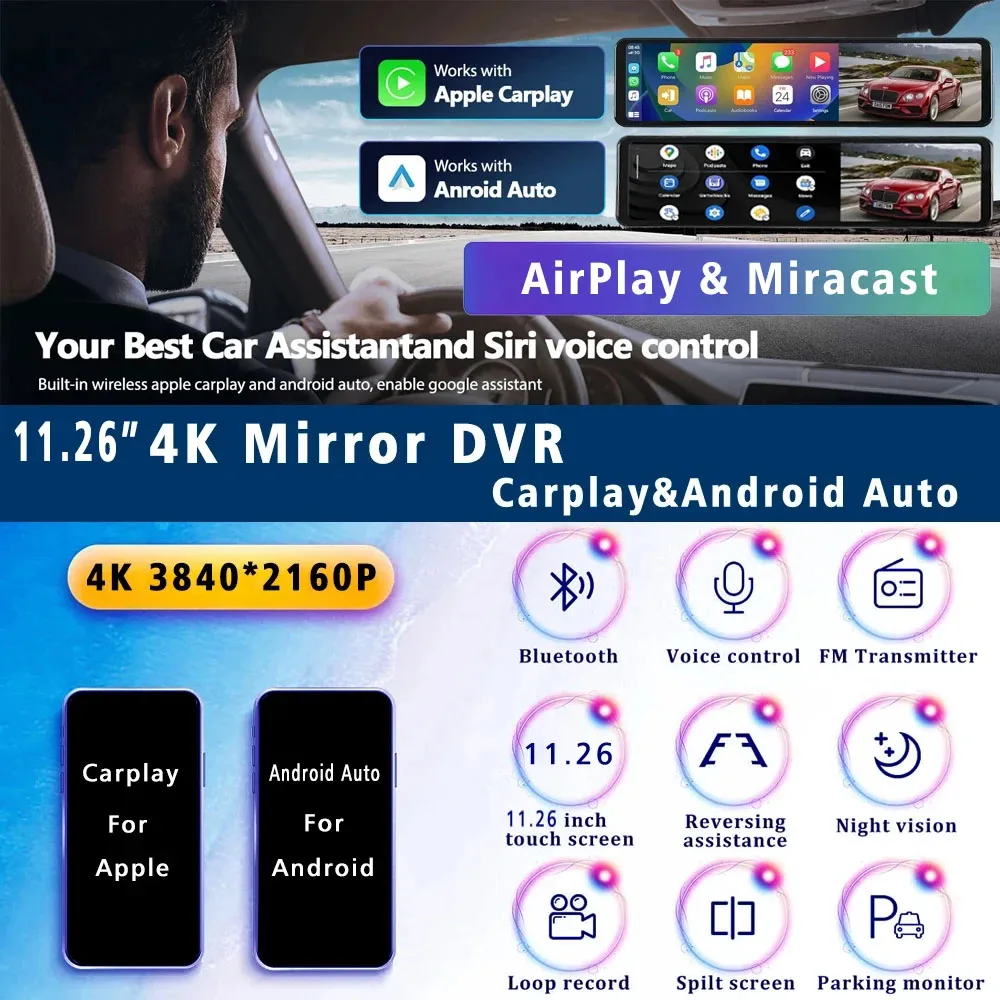
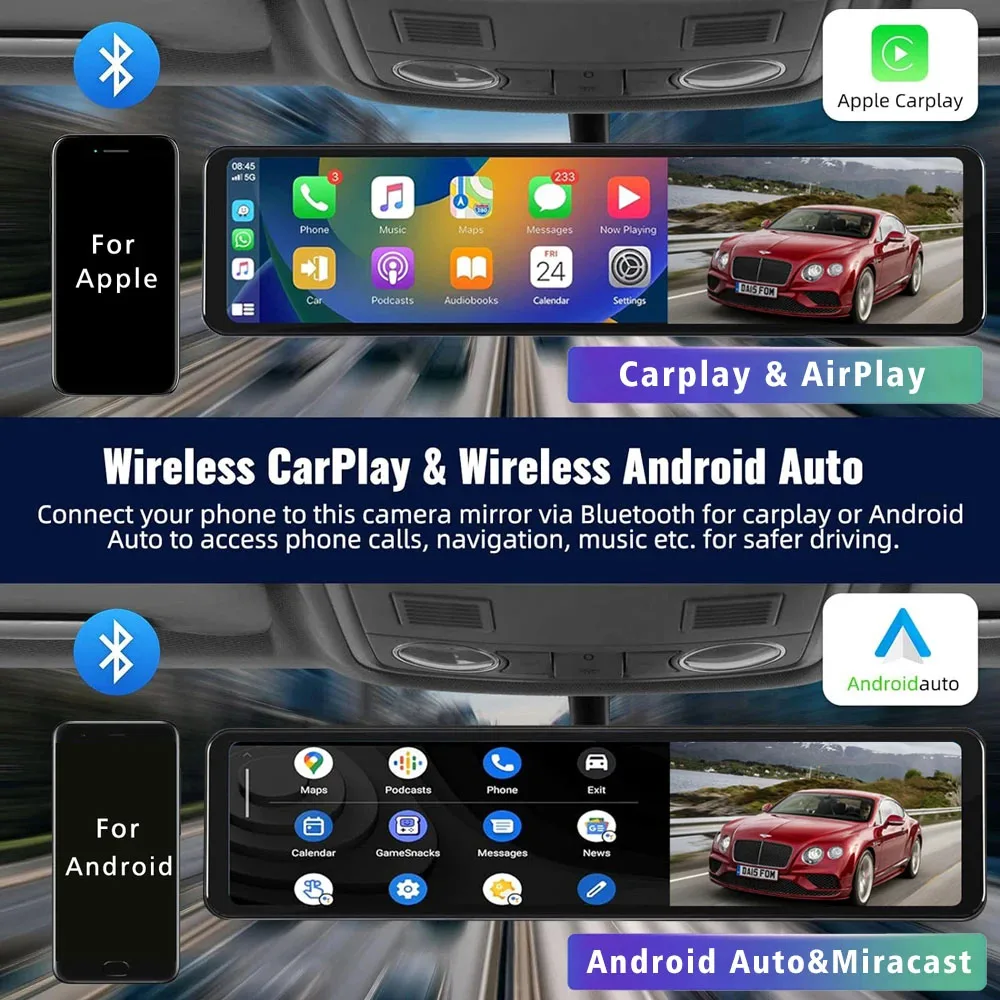
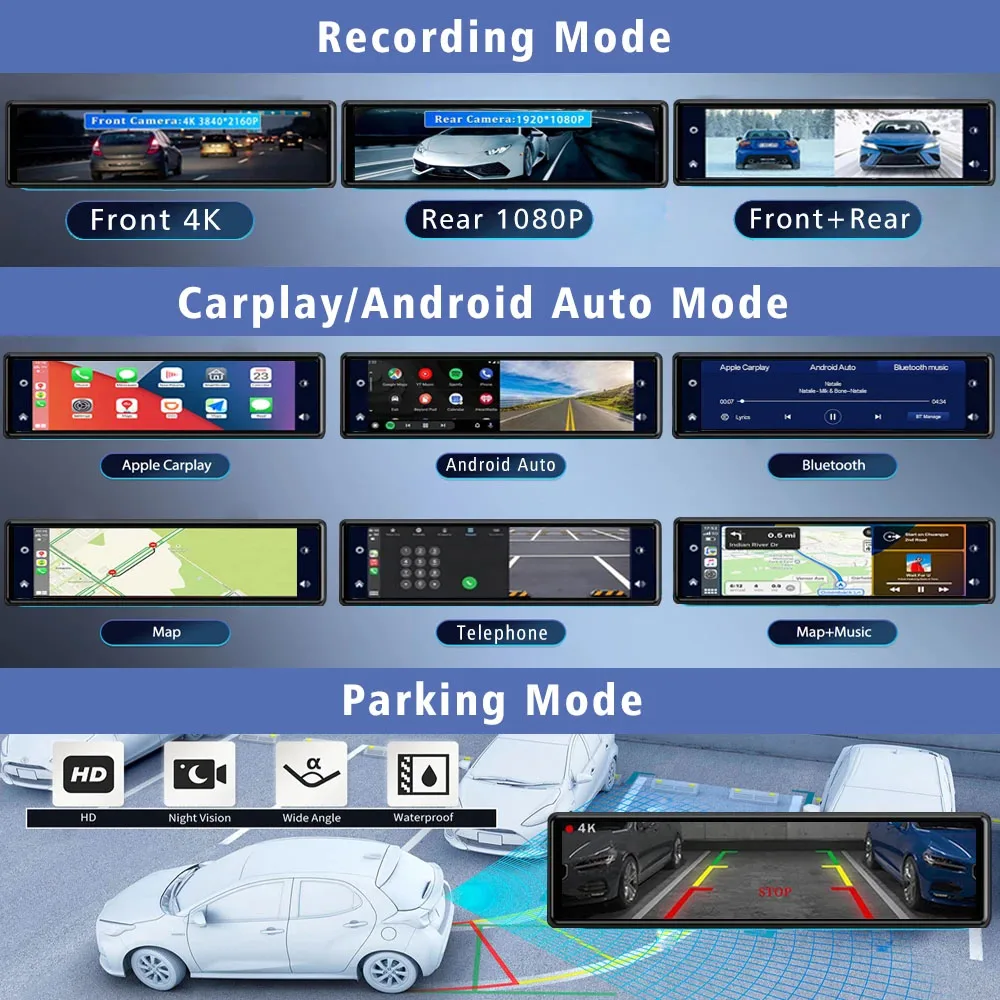
(1) If it is an Apple phone, the DVR menu needs to select the Carplay connection method as the connection method. The Carplay software installed on the Apple phone can directly connect to the DVR through the Carplay function.(2) If it is an Android phone, the DVR menu needs to select Android Auto as the connection method, and then download the Android Auto software from the Google App Store to connect to the DVR(Note: You must make sure to download the "Android Auto" software from the Google App Store. Downloading it from other channels may not work.)
About WIFI Connection:
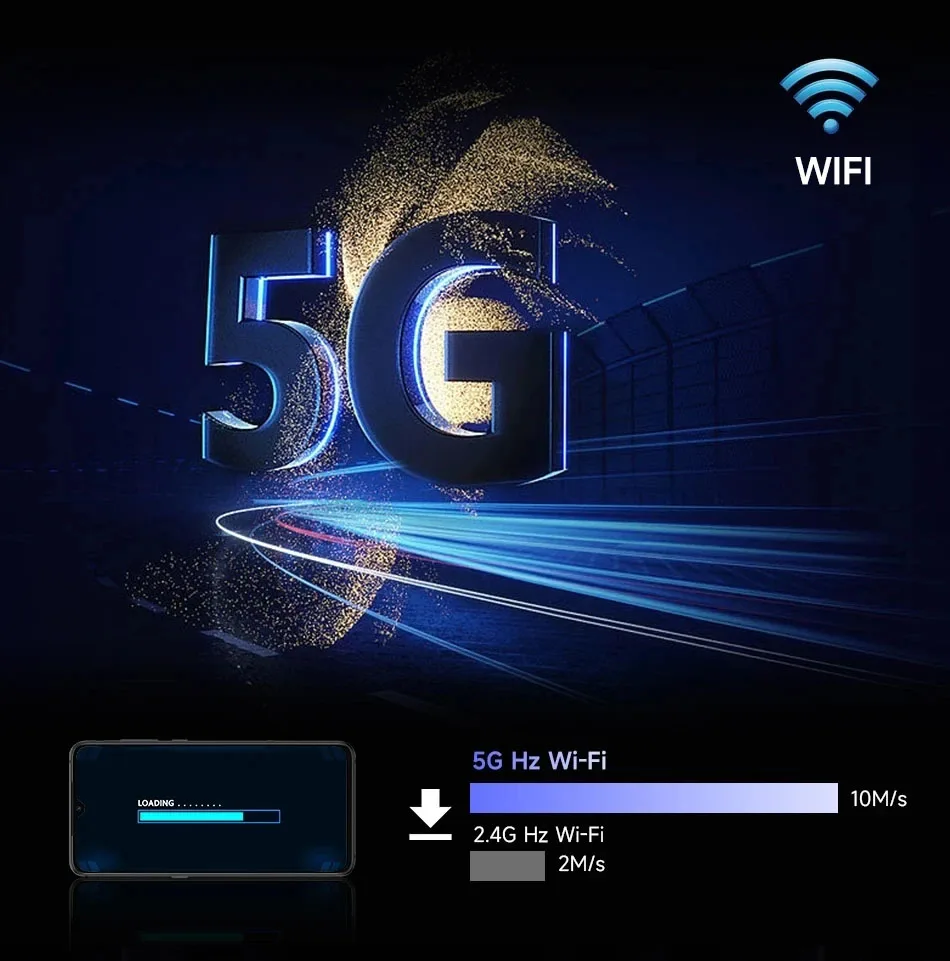
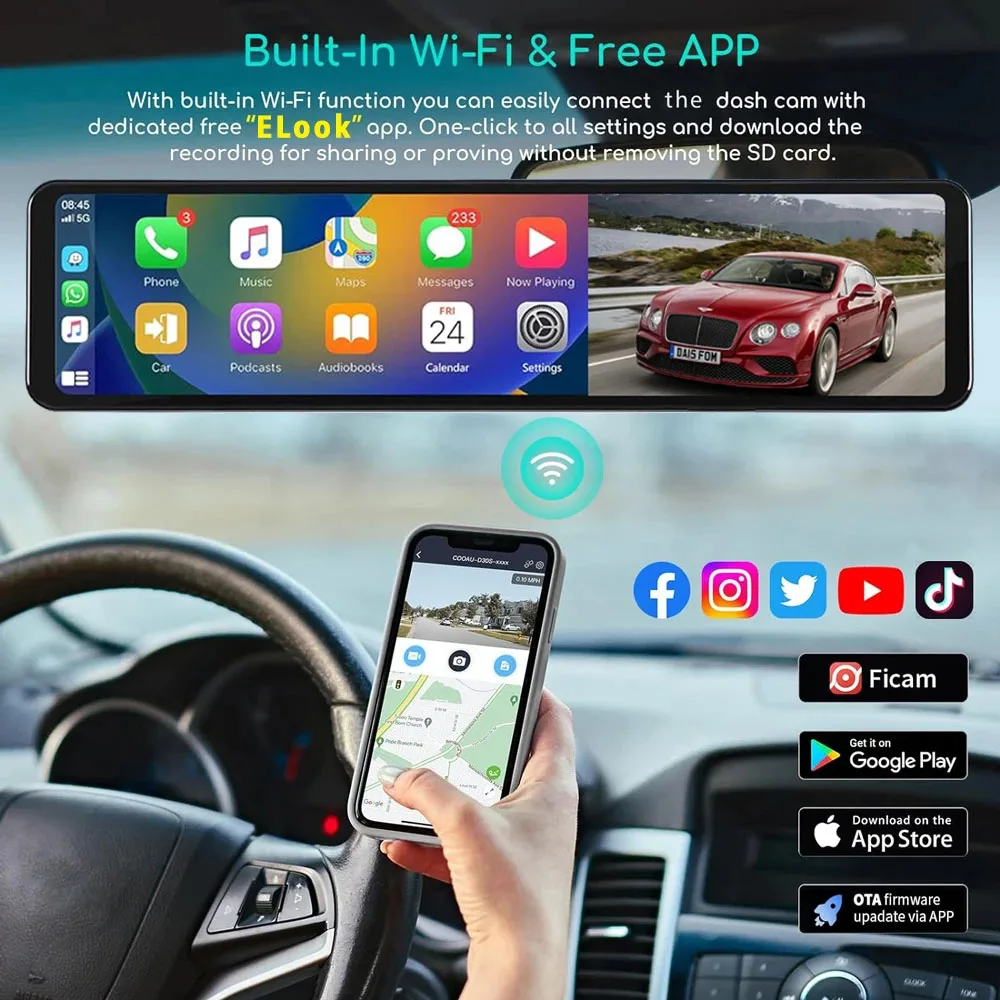
Before connecting to the DVR on the phone, it is necessary to install the WIFI connection app "Viidure" in advance.You can search for "Viidure" installation in the Apple App Store or Google App Market.
Steps:
(1) Enter the DVR menu and enter the WIFl setting menu,nable WiFi function;
(2)In the wifi menu of the DVR, check to obtain the wifi SSID name and password;
(3)Open the "Viidure" APP on your phone, enter the configuration mode, turn on the wifi function of the phone, follow the prompts to find the SSID wifi signal of the DVR and enter the password to connect;
(4)After successful configuration, you can connect and operate the DVR through the "Viidure" APP.
About The Reversing Assist Function:
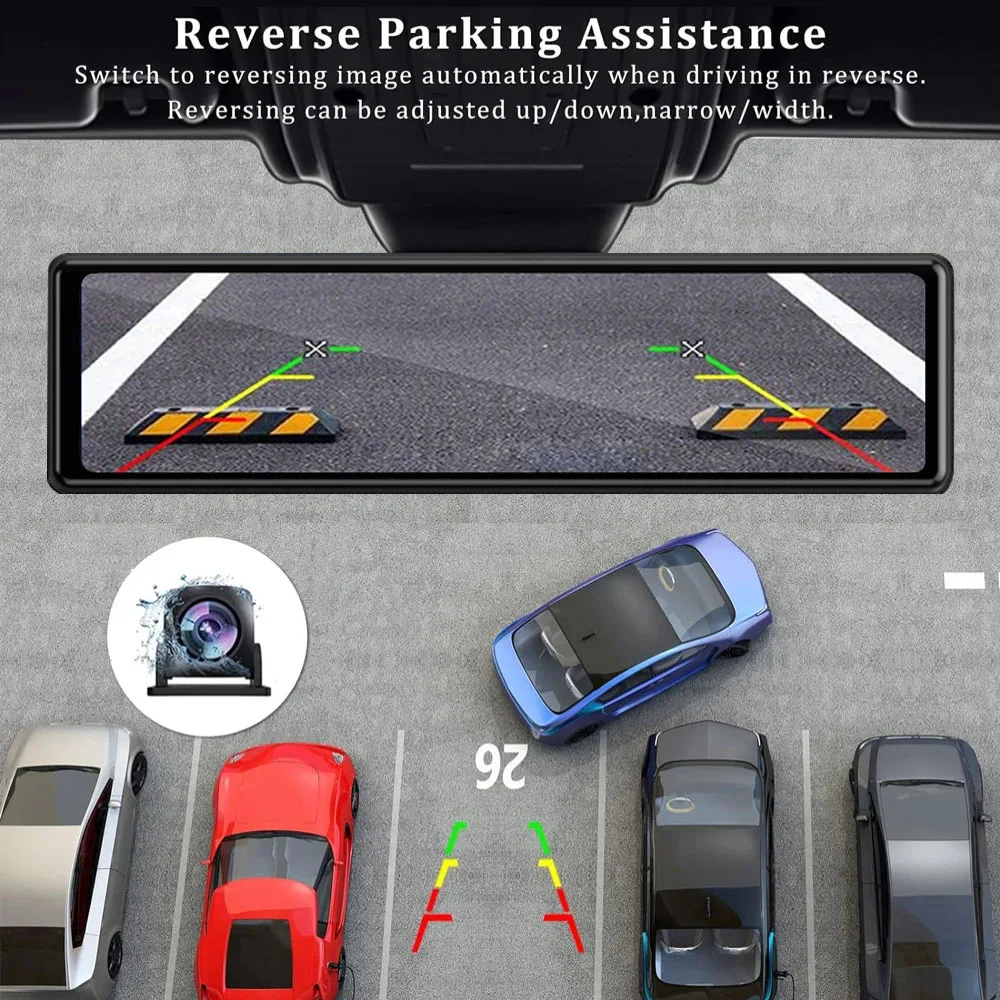
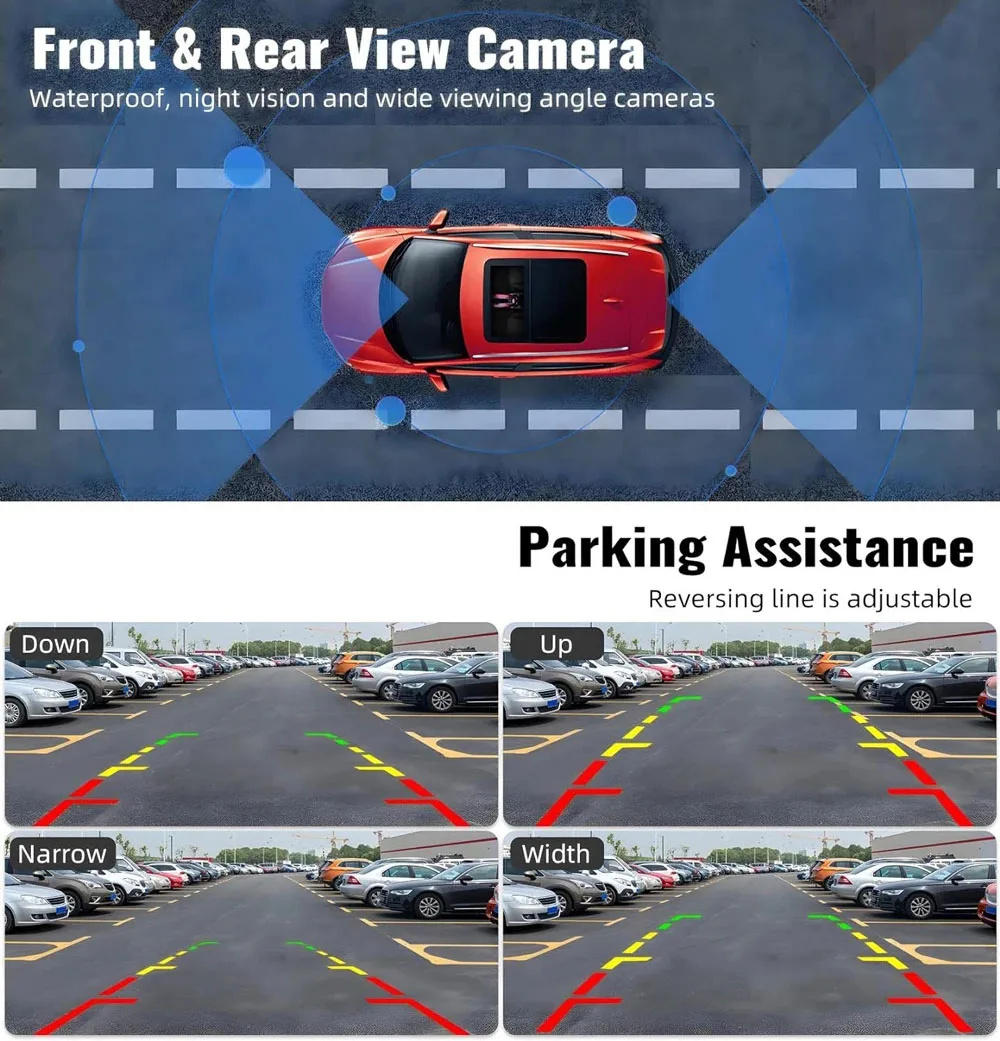
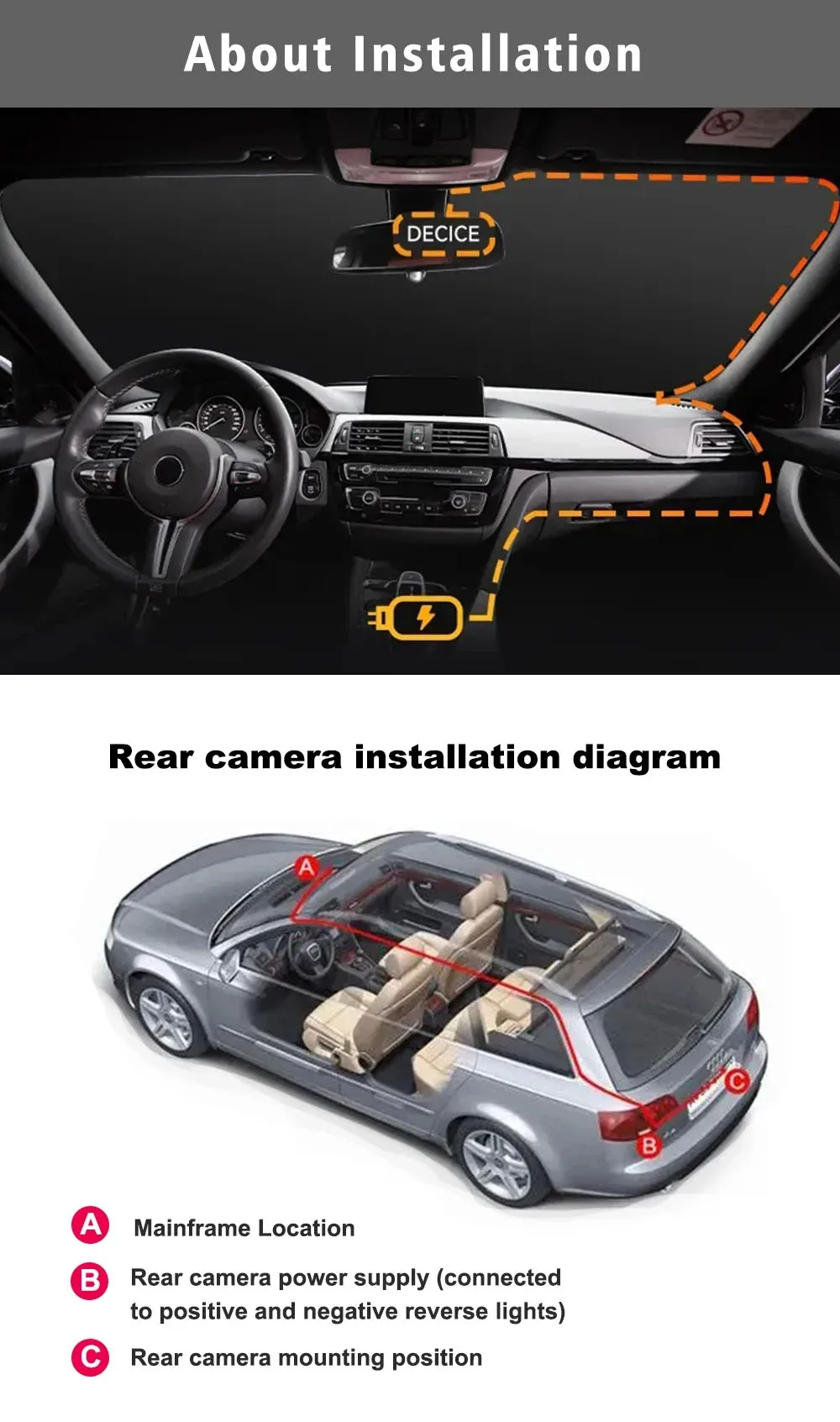
If the kit you ordered includes a rearview camera and you need to implement the reversing assist function, you need to connect the red signal wire of the rearview camera to the car's reversing light (the light will come on when reversing). If you don't need the reverse assist function, just disconnect the red signal wire and leave it unconnected.
About The Installation And Use Of GPS:
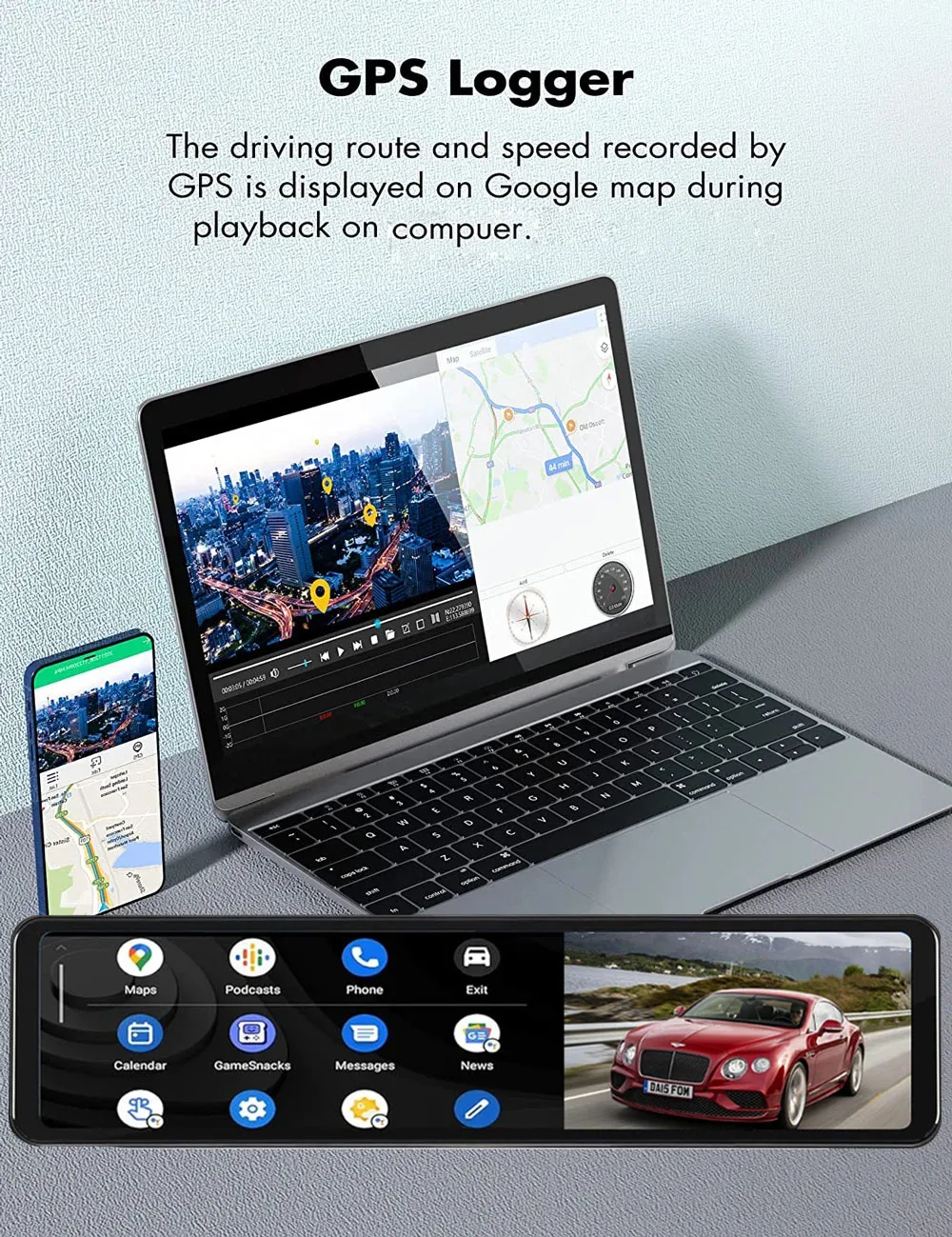
1. Connect the GPS module to the DVR and turn on the GPS function in the DVR menu settings;
2. Install the DVR on the car and start the recording mode. Start the car outdoors and drive for a certain distance. The GPS module will automatically capture the satellite signal and the DVR will automatically record the video with the GPS driving track.
Video Playback Of GPS Tracks:
1. Install the GPS dedicated video player "Hit GPS Player" on your computer. Please enter the link below in your computer browser to download and install;
Download link: https://pcgps.ce2ce.com/hit/hitplayer.html
2. Open the recorded DVR video with GPS track information on the computer through "Hit GPS Player" to play back the GPS driving track.
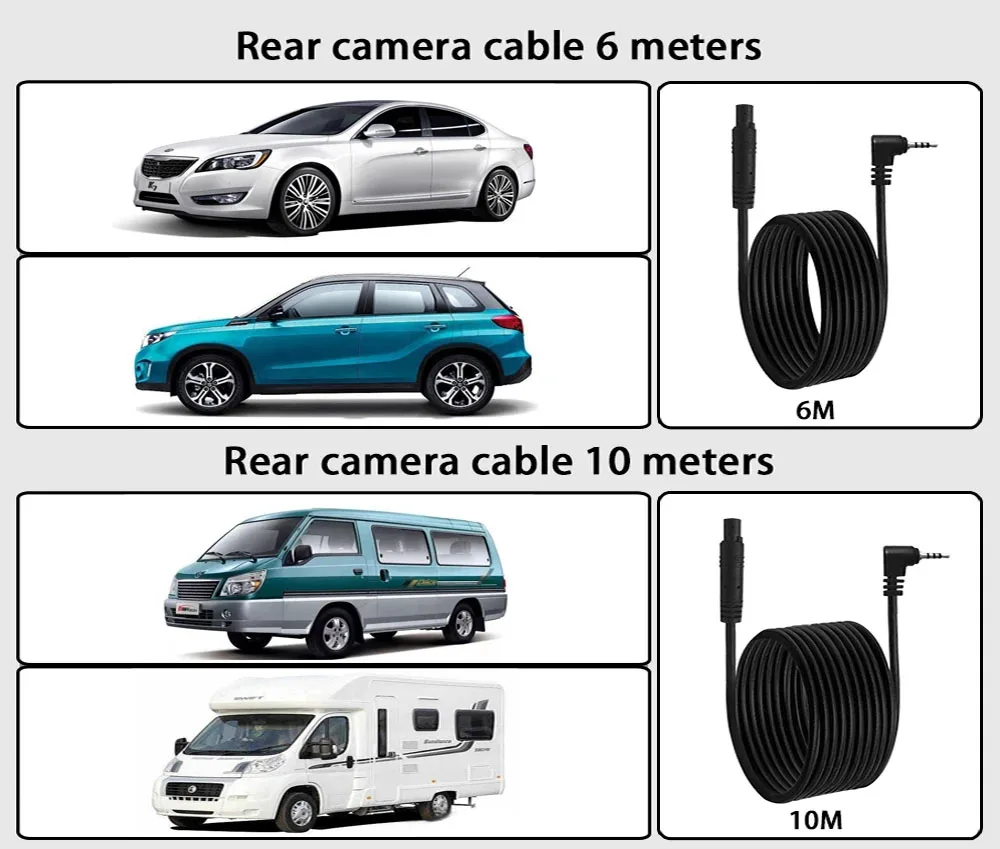
About the length of the rear view camera cable: